I have FxSound version 1.1.34.0 installed on my Acer Nitro 5 AN515-44, and now that the application is running, I have noticed that it’s now using my dedicated GPU (turning it on and lowering my battery life), which didn’t happen before, as it was running perfectly fine on my iGPU prior to the stated version.
I have already set graphics settings on Windows to run on Power Saving, as well as set on Nvidia Control Panel to run on Integrated Graphics, yet no change.
I’m wondering if anyone can help me out, or if this is part of the new update?
Hello, I’m also in the latest version and still have these same exact problems. FxSound runs on the dgpu even though I have it set on windows to run in the IGPU. I’m using a Lenovo LOQ laptop.
Same here. Running latest FX version 1.1.36.0. Changed a while ago System Display Graphic settings to select my power saving graphics. FX is still forcing use of GPU.
Same here, it was fine before the update, I’ve updated it today and it started doing it. I have set it to run on integrated in Nvidia control panel and restarted both my computer and the app, still runs on dGPU.
For reference, I’m on Windows 11, Lenovo Legion 5-15ACH6H (all stock parts, so my GPU is Nvidia RTX 3060).
How much GPU utilization do you observe during audio playback and visualizer being displayed? When you minimize the window during audio playback is the GPU utilization going to 0-1%?
Hello. Same here. Legion 7 with nVidia 3060 card. Latest app version, no success on windows graphic setting or nVidia control panel. Make fxsound close, imidietly turn off nVidia card.
If FxSound window is minimized then there shouldn’t be any GPU utilization.
When the visualizer is being displayed during audio playback, it will be consuming GPU cycles. Please let me know how much GPU percentage is used when you keep the visualizer open. We can try to optimize it.
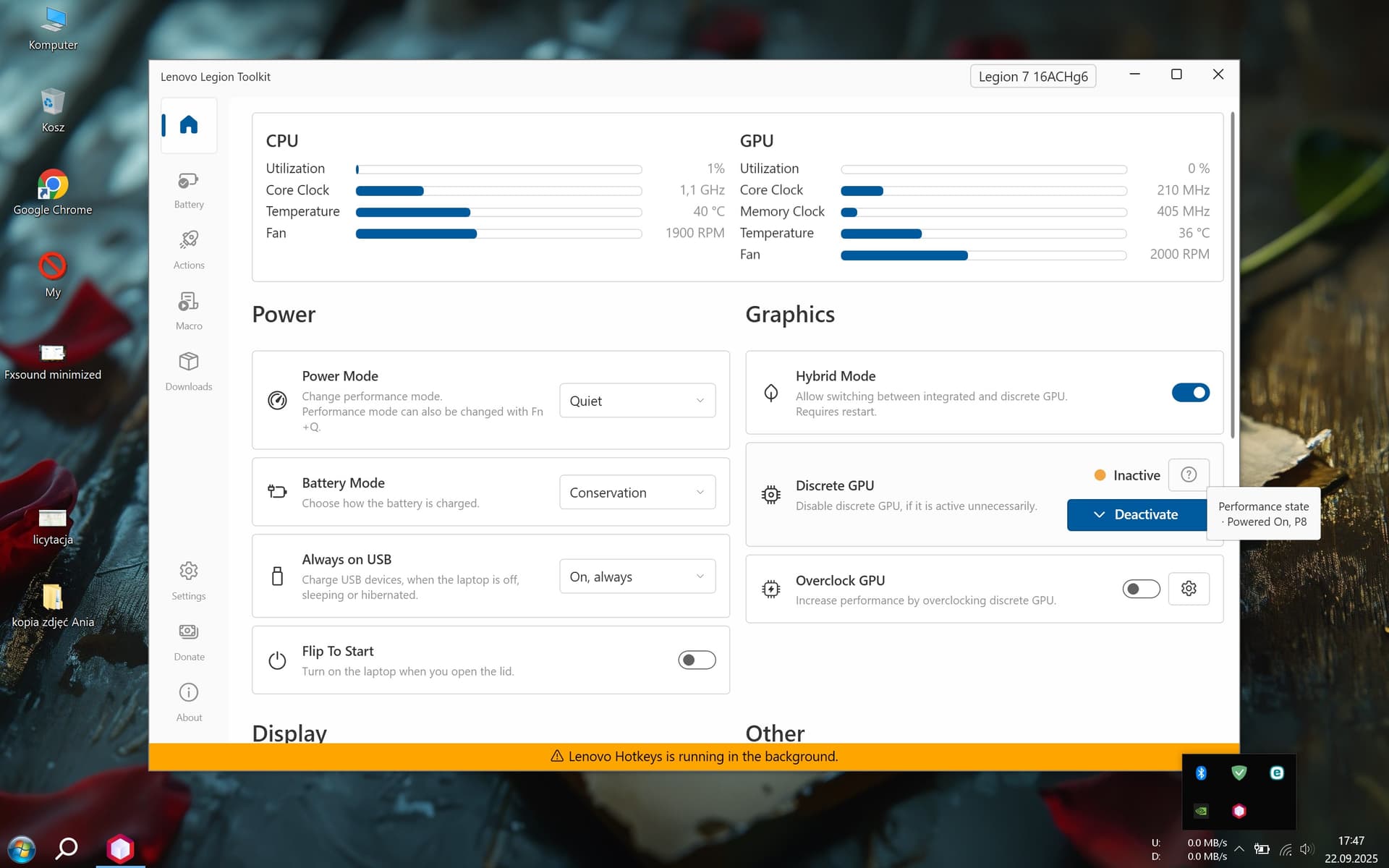
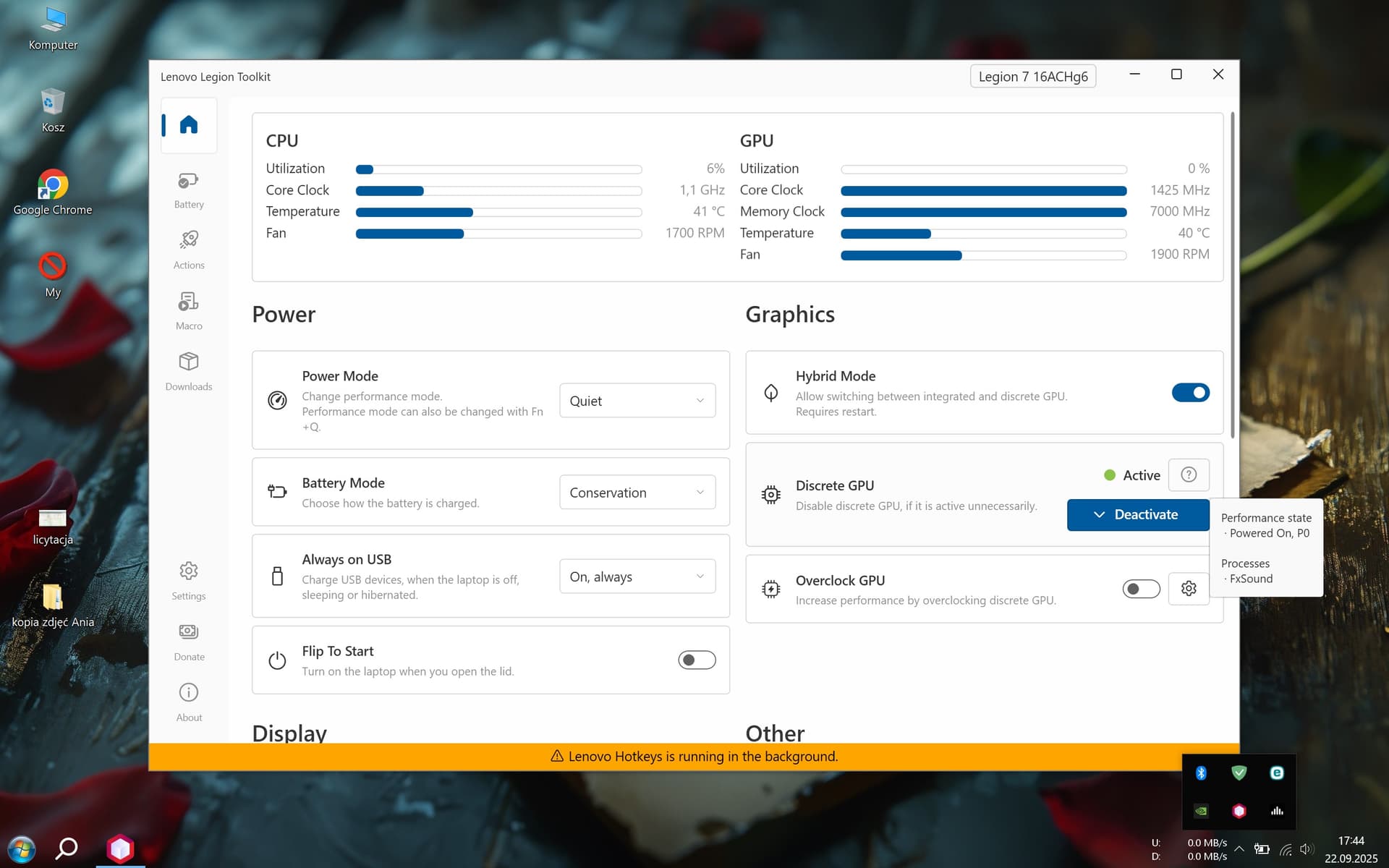
I`ve tested little more… I think the problem is more complicated. Fxsound is utylizing integred GPU even if it`s on and I move Fxsound window or listen playback, so it should be ok... However it is still forced dedicated GPU to be active (P0 state), even if minimized. Maby it is connected with OpenGL archtecture and NVIDIA drivers, which keep card active, when OpenGL app is running in background. I make some screenshots to help You.Wish I could post more images, but Im blocked EDIT: Probably Nvidia profile inspector and proper fxsound profile edit will be key to succes??
EDIT 2: No success in NVInspector, so I make some switch in bat file. Just copy the code to notepad, and save as bat. You can choose, to switch NVIDIA card on/off in few clicks. Temporary solution, but this “manual optimus” do the job for now.
CODE:
@echo off
title GPU Toggle (NVIDIA)
:menu
cls
echo =============================
echo GPU Toggle Menu
echo =============================
echo.
echo 1. Disable NVIDIA GPU
echo 2. Enable NVIDIA GPU
echo 3. Exit
echo.
set /p choice= Choose an option (1-3):
if “%choice%”==“1” goto disable
if “%choice%”==“2” goto enable
if “%choice%”==“3” exit
goto menu
Hello, any update? I am having the same issue. What’s interesting is that if you install FXSound from the MS-Store as a Metro App / System App then it does not use the dGPU. However installing it via the standalone installer causes the issue.
The problem for me however, in using it via MSstore is that it simply does not seem to be as stable.
Well i cannot upload attachments as a new user so i will just paste the report here. (Formatted by ChatGPT)
FxSound.exe — Persistent dGPU Utilization and Power Inefficiency
Summary
FxSound continuously activates the discrete NVIDIA GPU and prevents the CPU from entering low-power states, even when idle. Windows and NVIDIA GPU preference settings have no effect. The issue originates from FxSound initializing a Direct3D context on the dGPU and maintaining a constant 10 ms multimedia timer loop, resulting in continuous GPU activity and elevated power consumption.
System Information
Device: ASUS ROG Zephyrus G14 (2024) GA403UI
CPU: AMD Ryzen 9 8945HS with Radeon 780M
dGPU: NVIDIA GeForce RTX 4070 Laptop GPU
OS: Windows 11 Home 24H2 (Build 26200)
BIOS: GA403UI.308 (2024-09-27)
Power Plan: OEM Balanced ({381b4222-f694-41f0-9685-ff5bb260df2e})
Also just for my own reference, slightly off-topic, is anyone else seeing an increase in RAM usage when the system is in an idle state in the 25H2 update? I used to have about 15-17% usage post-startup and now its literally doubled to 30%+

 EDIT: Probably Nvidia profile inspector and proper fxsound profile edit will be key to succes??